Online check-in from May 19th onwards
Online check-in from May 19th onwards
Important Notice
- We will be migrating our system at each airport in stages between May 19, 2026 and June 9, 2026 (scheduled).
During the migration period, airports operating on the previous system and airports operating on the new system will coexist. Please refer to the corresponding instructions below for your departure airport.
We sincerely apologize for any inconvenience this may cause.
System Migration Schedule by Airport
* “—” indicates not applicable.
| Date of Travel | Airports on Previous System | Airports on New System |
|---|---|---|
| May 19 – May 26 | All airports | ― |
| May 27 – June 2 | Nagasaki, Fukuoka, Iki, Tsushima, Komatsu, Akita, Nagoya | Fukue |
| June 3 – June 9 | Miyazaki, Komatsu, Akita, Nagoya | Fukue, Nagasaki, Fukuoka, Iki, Tsushima |
| June 10 onwards | ― | Fukue, Nagasaki, Fukuoka, Iki, Tsushima, Miyazaki, Komatsu, Akita, Nagoya |
How to Check In (Airports on the Previous System)
*You will be automatically directed to the appropriate page based on the departure date you enter.
On the Online Check-in search page, enter your booking details and click the Search button.
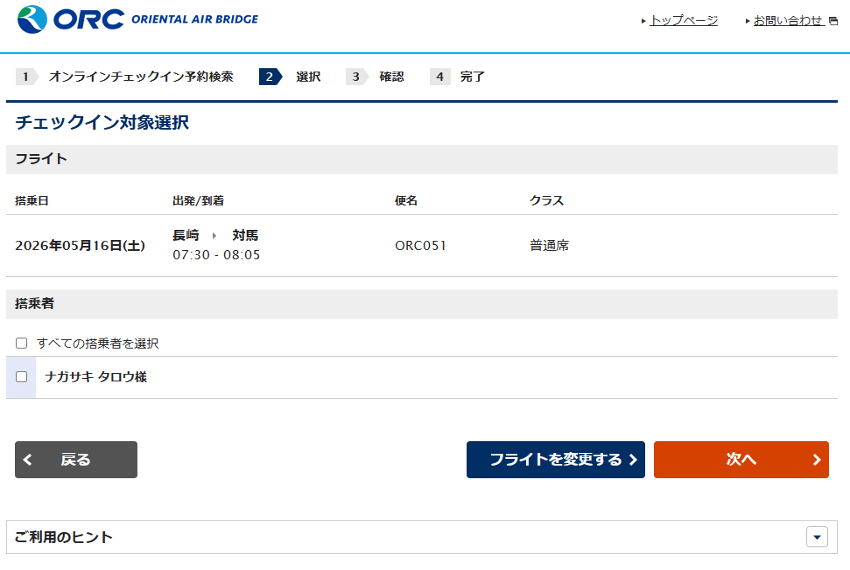
2. On the Check-in Selection screen, select the flight(s) and passenger(s) you wish to check in, then select Next.
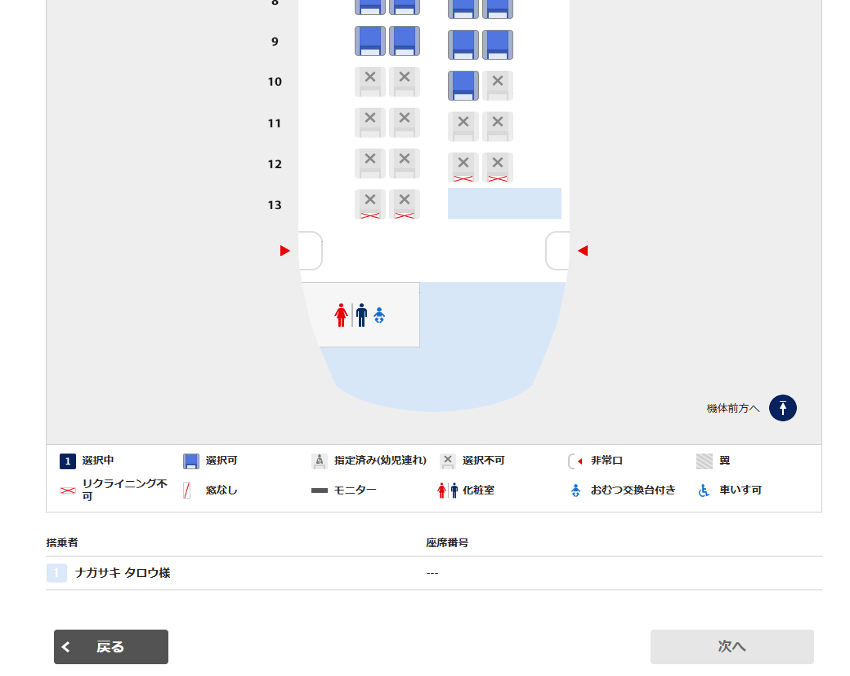
3. On the Seat Selection screen, choose your preferred seat, then select Next.
4. On the Check-in Confirmation screen, review your flight details, select “I have confirmed the details,” then select Check In.
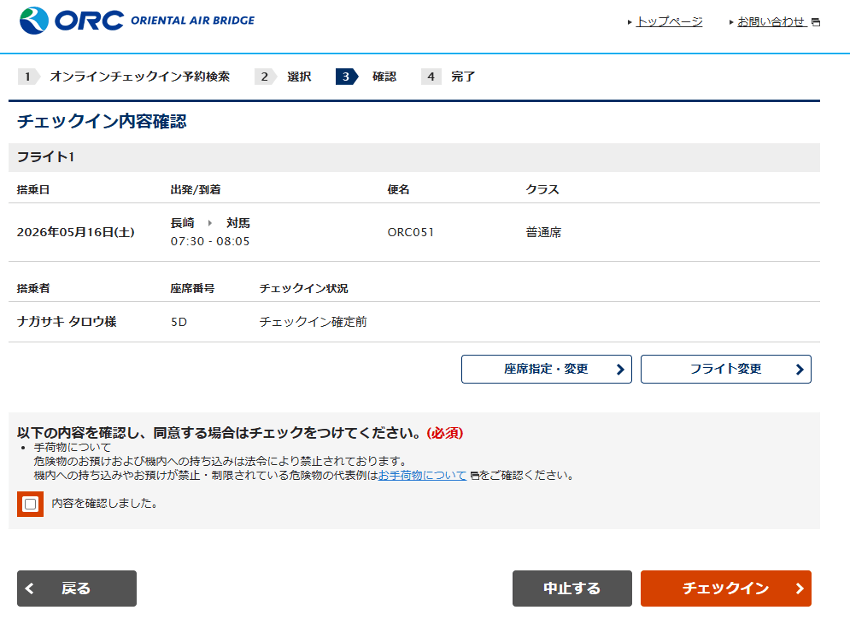
5. On the Check-in Complete screen, select Boarding Pass.
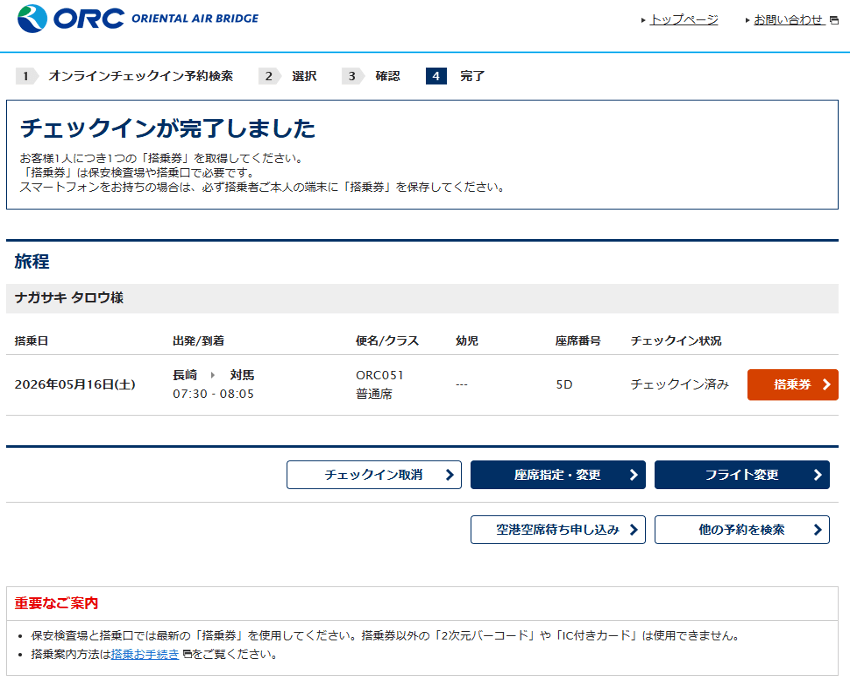
6. To receive your boarding pass by email, select Send by Email on the Boarding Pass screen, then select Send. To print your boarding pass, select Print.
Cancelling Your Online Check-in
- On the Online Check-in Search screen, enter your flight details and select Search.
- On the Check-in Status screen, confirm your flight and select Cancel Check-in.
- On the Check-in Cancellation screen, select the passenger(s) and select Next.
- On the Check-in Cancellation Confirmation screen, review the cancellation details, select “I have confirmed the details,” then select Cancel Check-in.
- Review the cancellation notice and select OK.
- Your check-in cancellation is now complete.
How to Check In (Airports on the New System)
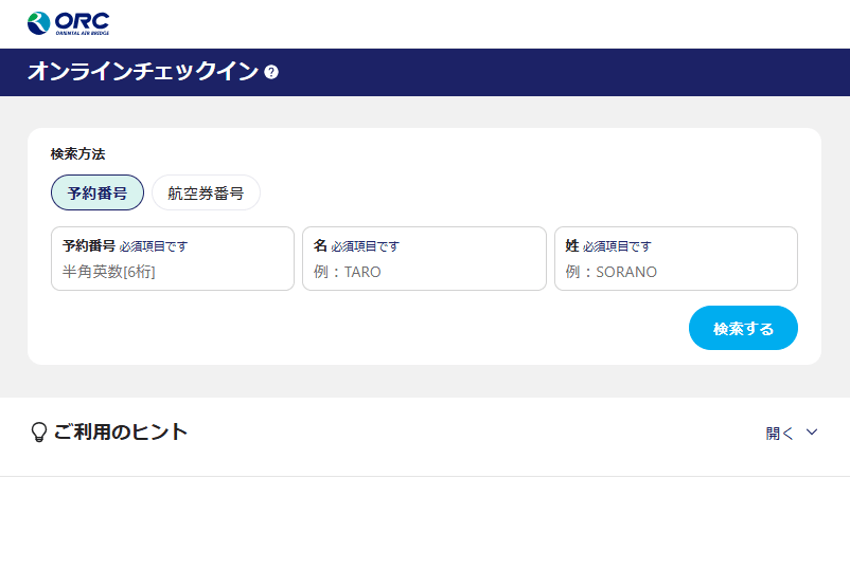
1. On the Online Check-in screen, enter your Booking Reference or Ticket Number along with your First and Last Name, then select Search.
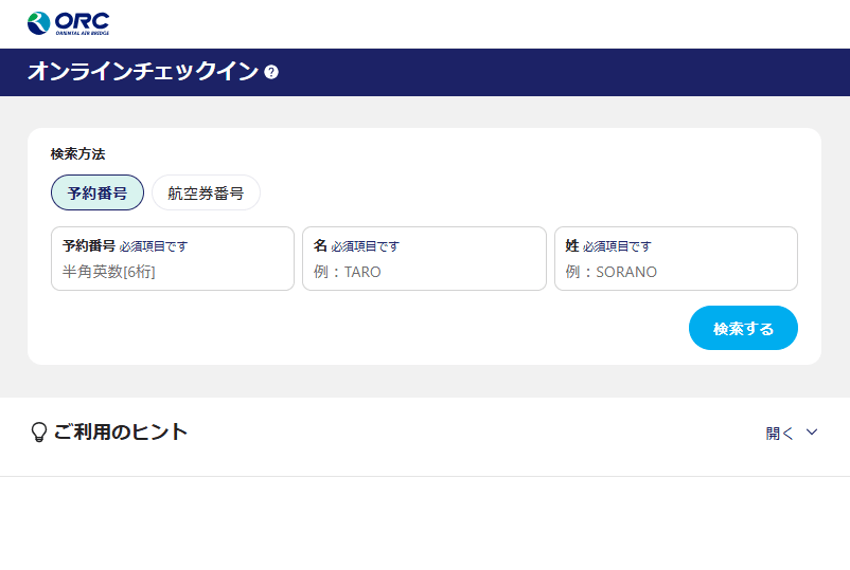
2. On the Check-in Selection screen, select the applicable flight(s) and passenger(s), then select Online Check-in.
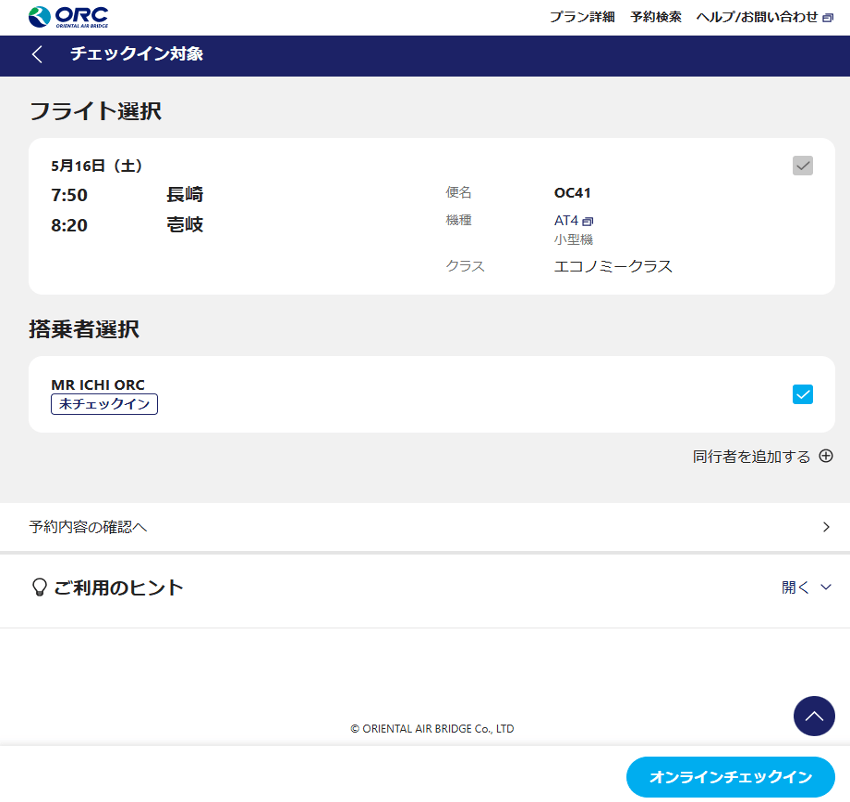
3. On the Seat Selection screen, choose your preferred seat and select Register.
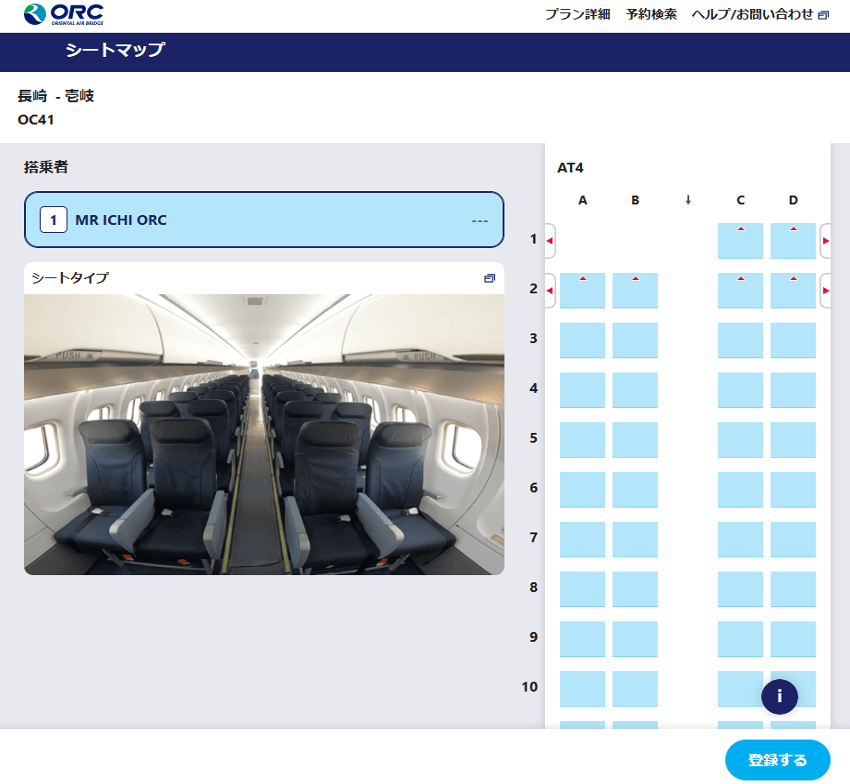
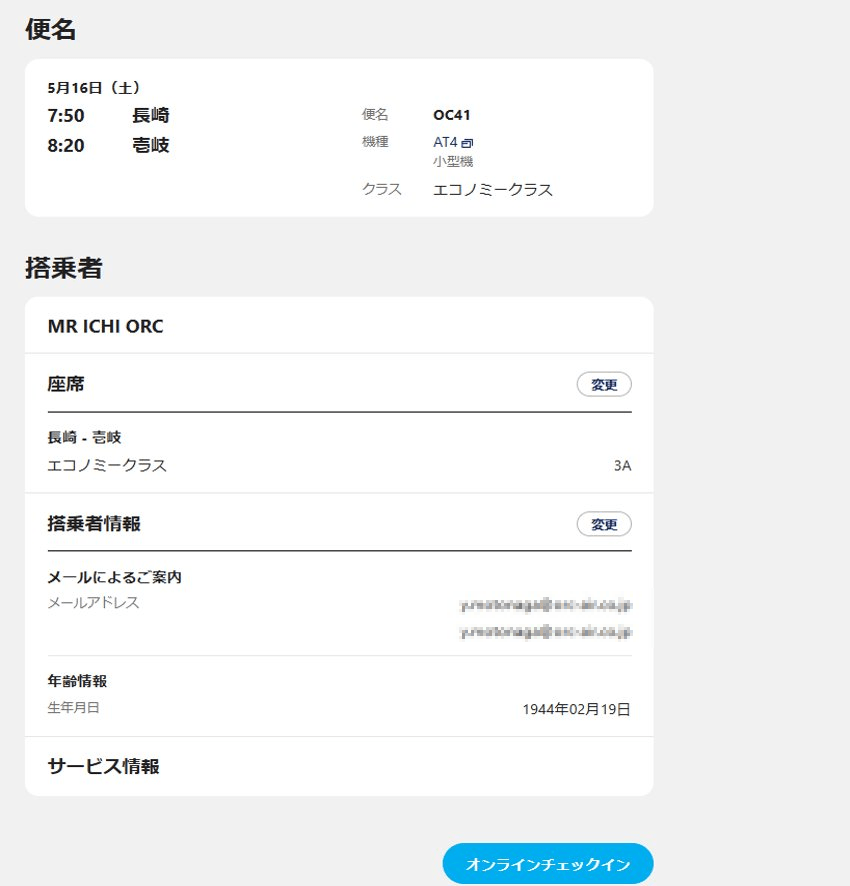
4. On the Check-in Confirmation screen, review your check-in details and select Online Check-in.
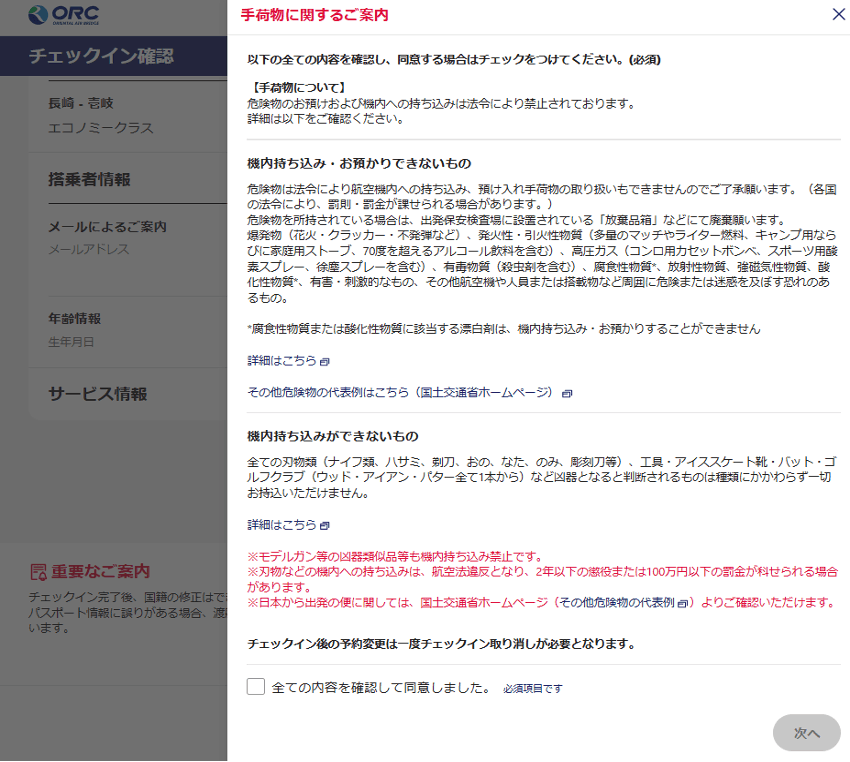
5. Review the baggage information, check the confirmation box, then select Next.
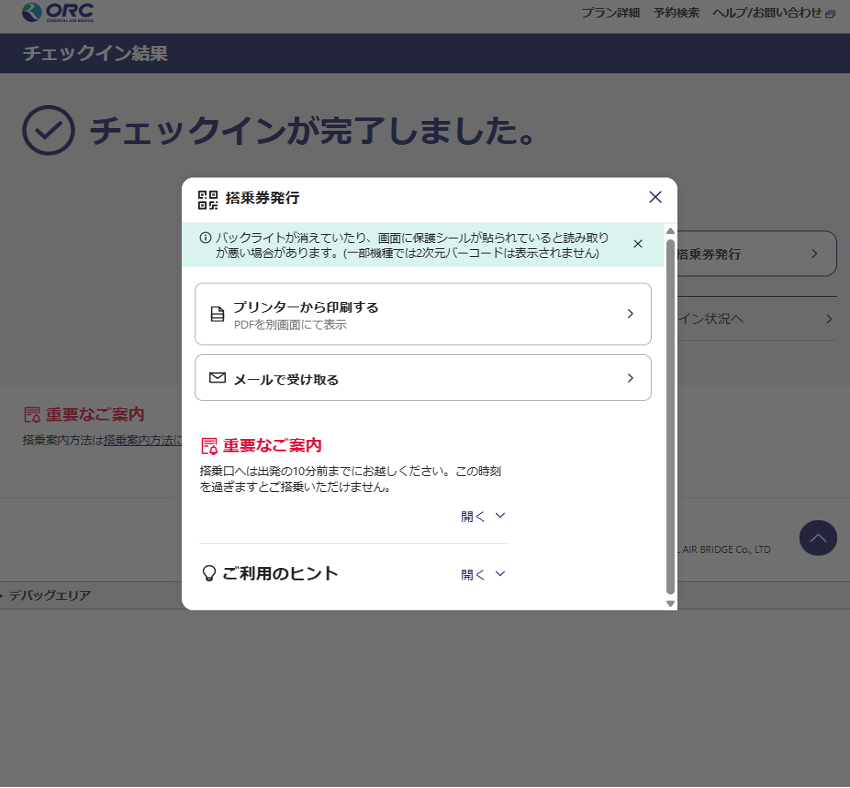
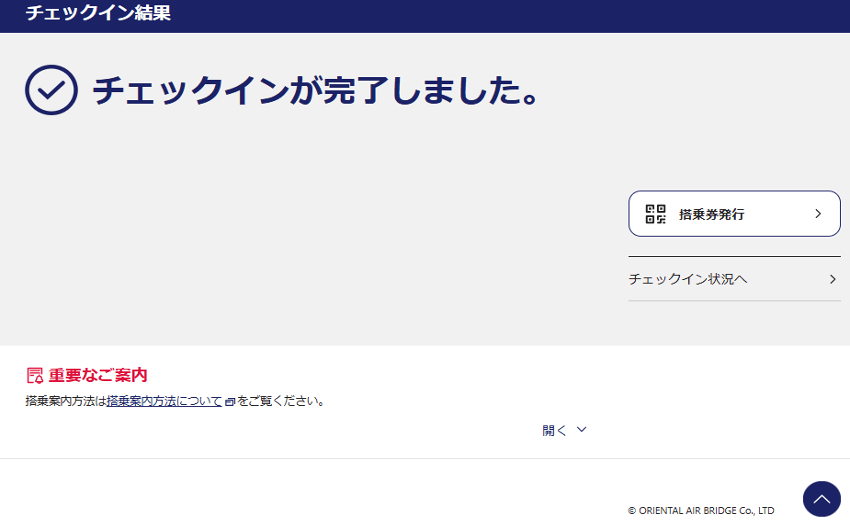
6. On the Check-in Complete screen, select Issue Boarding Pass.
7. To receive your boarding pass by email, select Send by Email on the Boarding Pass screen, then select Send. To print your boarding pass, select Print.